
Introduction
Migrating DNS to Cloudflare
A slow website is an invisible tax on your search rankings, and most business owners never see it coming. If your domain's DNS still sits with your registrar, you're leaving free speed, security, and SEO gains on the table. Here's the technical case for switching, and a safe, step-by-step migration path that won't break your email or take your site offline.
The Hidden Cost Of Registrar DNS
Registrars like GoDaddy and Namecheap are built to sell domains, not to route global traffic efficiently. Every time a visitor loads your site, their browser has to ask a DNS server "where does this domain live?" — and if that server is slow or geographically distant, you've already lost time before a single pixel renders.
Google's ranking algorithm explicitly weights page experience signals, including Core Web Vitals and HTTPS security. That means the invisible plumbing of your DNS setup has a direct, measurable line to your search visibility.
The Technical "Why": How DNS Becomes An SEO Lever
01.
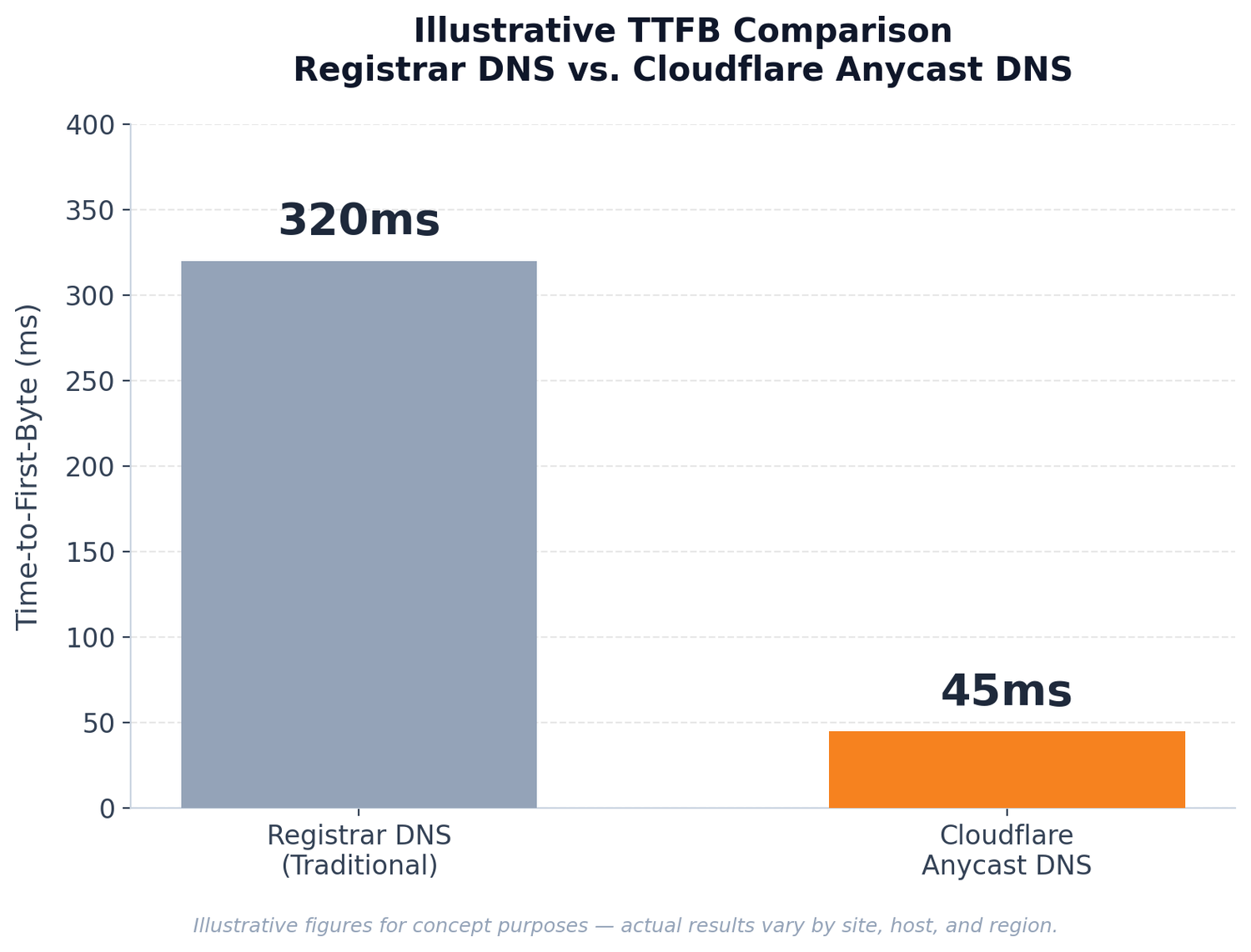
Anycast DNS and Time-to-First-Byte
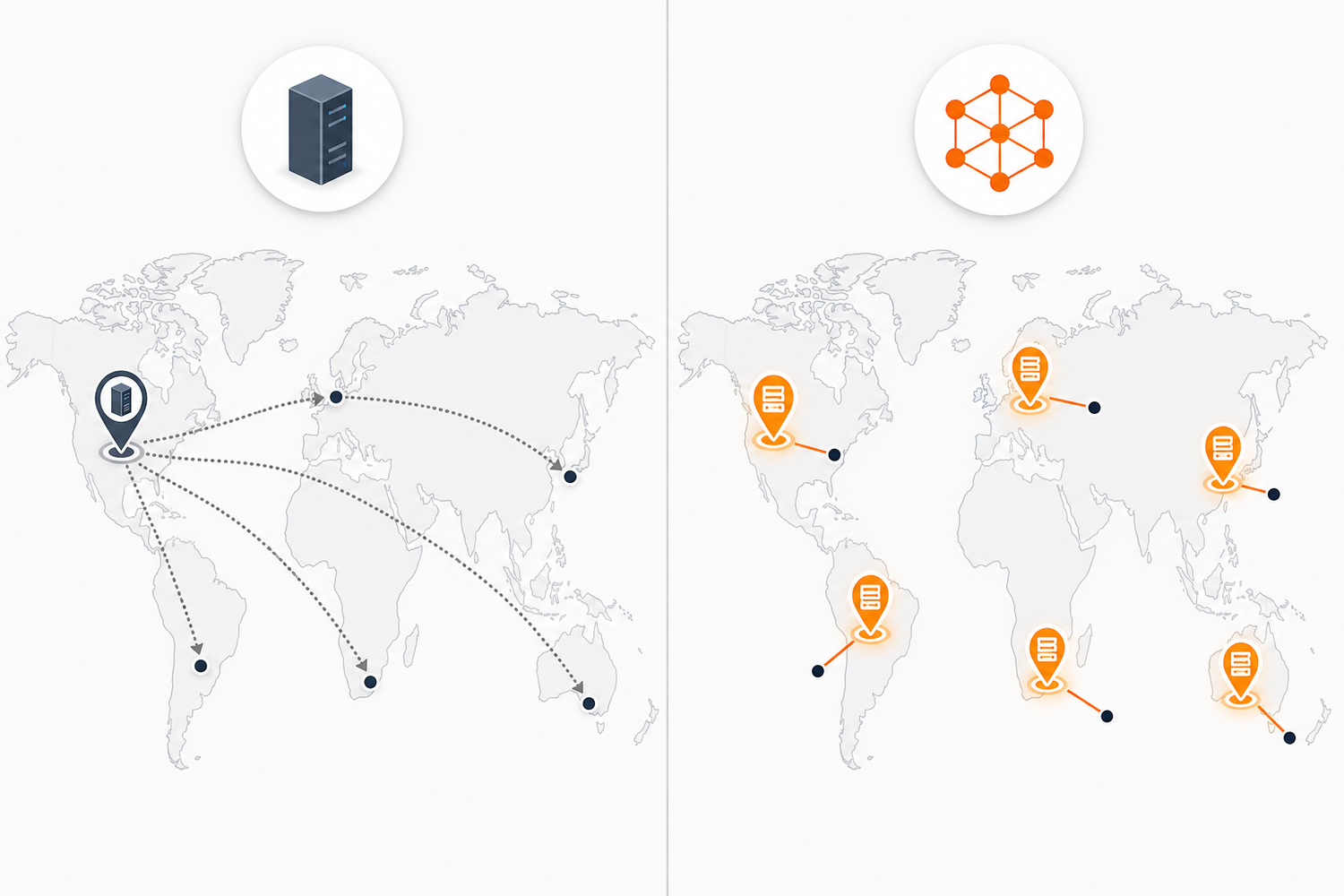
Cloudflare runs one of the fastest Anycast DNS networks on Earth. Think of Anycast like a chain of coffee shops with the exact same menu in every city — you don't have to travel to one flagship location; you just walk into the nearest branch and get served instantly.
Anycast works the same way for DNS lookups: instead of every request traveling to one distant server, it's answered by the closest edge location to the visitor. This shaves real milliseconds off Time-to-First-Byte (TTFB), which is the clock that starts every single page load.
02.
Edge Caching and Core Web Vitals
Flipping on Cloudflare's proxy (the orange cloud) routes your traffic through a global CDN that caches your website's assets — images, CSS, fonts — physically closer to each visitor. This is like stocking a warehouse in every city instead of shipping every order from one central factory.
That proximity caching directly improves two metrics Google tracks as part of Core Web Vitals:
- Largest Contentful Paint (LCP): measures how fast the biggest visible element (usually a hero image or headline block) loads. Cached assets served from a nearby edge node load dramatically faster than assets pulled from a single origin server on the other side of the world.
- Interaction to Next Paint (INP): measures how quickly your page responds when a user clicks or taps. Less time spent waiting on network round-trips for scripts and assets means the browser's main thread is free sooner to handle interactions.
In plain terms: faster DNS resolution plus edge caching means your page "shows up" faster and "responds" faster — the two things Google explicitly rewards.
03.
Uptime and Security Shielding
If your site goes offline during a bot attack or an unexpected traffic spike, your rankings can suffer — Google doesn't rank pages it can't reliably crawl and serve. Cloudflare's DDoS protection and Layer 7 firewall absorb malicious traffic at the edge, before it ever reaches your origin server, keeping your site indexable and available around the clock.
04.
Seamless Encryption
Google effectively mandates HTTPS as a ranking baseline. Cloudflare issues free, automatic SSL/TLS certificates at the edge, so you get an encrypted connection — and the associated Google ranking boost — without touching your backend server configuration.
05.
Bonus: Bot and Scraper Mitigation
Cloudflare's dashboard also lets you block aggressive AI scrapers and hostile bots that quietly drain server resources and slow your site down for real human visitors and search crawlers alike.
Your Step-By-Step Safe Migration Guide
Migrating DNS is straightforward when you follow a strict order of operations. Skipping the audit step is where most business owners break their email — so don't skip it.
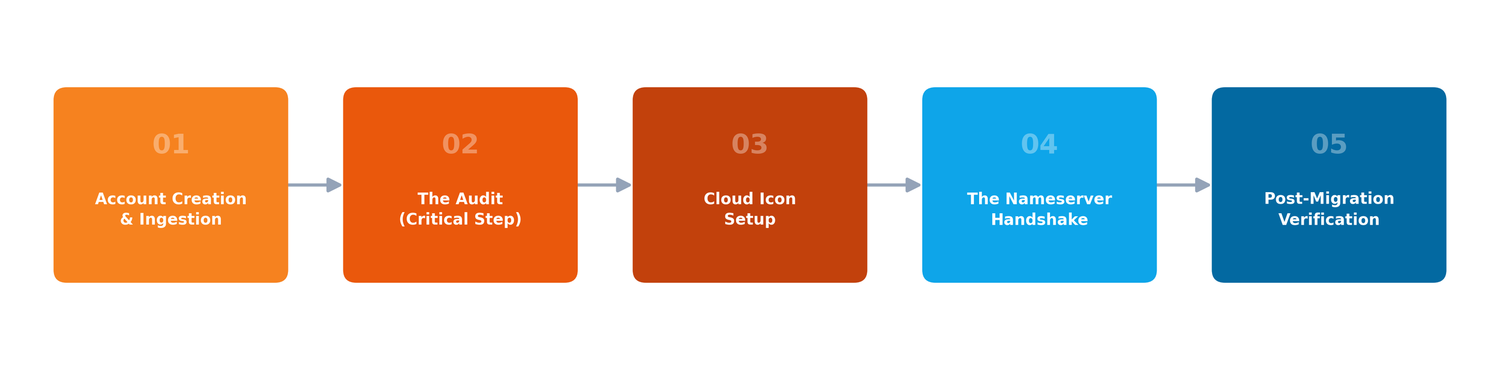
Phase 1: Account Creation & Ingestion
- 1. Go to Cloudflare and create a free account.
- 2. Click Add a Site and enter your root domain (e.g., yourbusiness.com).
- 3. Select the Free Plan — it already includes global CDN, DDoS protection, and fast DNS.
Phase 2: The Audit (Critical Step)
Cloudflare automatically scans and imports your existing DNS records — but automated scans aren't infallible.
- Pull up your current registrar's zone file and cross-reference every record line by line.
- Confirm all A and AAAA records (which point your domain to your web server) are present and correct.
- Confirm every MX record (which routes your business email) has been imported — a missed MX record is the single most common way businesses lose email during migration.
- Confirm your TXT records are intact, including SPF, DKIM, and any domain verification strings for tools like Google Workspace or Microsoft 365.
Phase 3: Understand The Cloud Icons Before You Flip Anything
Cloudflare's dashboard uses two icons next to each DNS record, and getting this wrong causes most post-migration headaches:
- Gray Cloud (DNS-only): traffic bypasses Cloudflare's proxy and goes straight to the destination. Use this for MX records and most email-related TXT/CNAME records — email servers generally cannot be proxied.
- Orange Cloud (Proxied): activates Cloudflare's CDN, caching, and security layer. Turn this on for your main website records (yourbusiness.com and www) to unlock the speed and security benefits.
A simple rule: orange for the website, gray for email. Mixing these up is exactly how "safe" migrations turn into broken inboxes.
Phase 4: The Handshake — Updating Nameservers
- 1. Cloudflare will assign two unique nameservers (e.g., isaac.ns.cloudflare.com and lucy.ns.cloudflare.com).
- 2. Log into your domain registrar (GoDaddy, Namecheap, Google Domains, etc.).
- 3. Find the Nameserver Settings, switch from "Default" to "Custom," and paste in Cloudflare's two nameservers, removing the old ones entirely.
- 4. Save your changes.
Phase 5: Post-Migration Verification
- 1. Return to Cloudflare and click Done, check nameservers.
- 2. Be patient — propagation can take anywhere from a few minutes to 24 hours worldwide, so avoid panicking if changes aren't instant everywhere.
- 3. Go to the SSL/TLS tab and set encryption mode to Full or Full (Strict). Skipping this step, or leaving it on "Flexible," is a leading cause of infinite redirect loops between your server and Cloudflare's edge.
- 4. Send a test email and load your site from multiple devices/networks to confirm both channels survived the switch.


The Real Risk Business Owners Underestimate
The steps above look simple on paper — and that's exactly the danger. A single mistyped MX record can silently take down your entire company inbox for hours before anyone notices. A missed A record can make your homepage vanish for a portion of visitors during propagation. And the wrong SSL/TLS mode can trap your site in an infinite redirect loop that locks out both customers and Googlebot — quietly erasing weeks of hard-won SEO progress.
These aren't hypothetical edge cases; they're the most common reasons DIY migrations go wrong. That's precisely the gap a managed migration is built to close.
The value is simple: Zero-Downtime Migration.
Why Do This With An Approved Cloudflare Provider

Your site stays live, your inbox keeps working, and your Core Web Vitals start improving — without you ever touching a nameserver setting yourself.
I work as an approved Cloudflare provider offering fully Managed Services — configuring, auditing, and securing DNS zones for businesses so the transition happens with expert oversight from start to finish. Rather than gambling your email and rankings on a manual cutover, you get a specialist who has run this exact playbook repeatedly and knows every place it can go wrong.
Don't Risk Your Rankings


Your DNS migration is either your next SEO win or your next support headache — and the difference comes down to who's holding the keys during the cutover. Every hour you wait on a slower, less secure registrar setup is an hour your competitors' faster sites are pulling ahead in search results
Stop risking a broken inbox or a redirect loop to save a setup fee.
Book your Zero-Downtime Cloudflare DNS Migration today and let an approved Cloudflare provider handle the technical heavy lifting — safely, quickly, and completely off your plate.